QuickBooks for Contractors: What to Sync and What to Skip
QuickBooks is the accounting backbone for most small contractors. But accounting software is only as good as the data going into it. We talk to contractors every week who have QuickBooks set up but are not actually using it in a way that helps them at tax time or when making business decisions. The problem is rarely the software. It is that nobody sat them down and said "sync this, skip that, and here is why."
What should sync into QuickBooks
The goal of syncing is to get your financial picture into QuickBooks without creating a mess. That means three things need to flow in cleanly: invoices, payments, and client records.
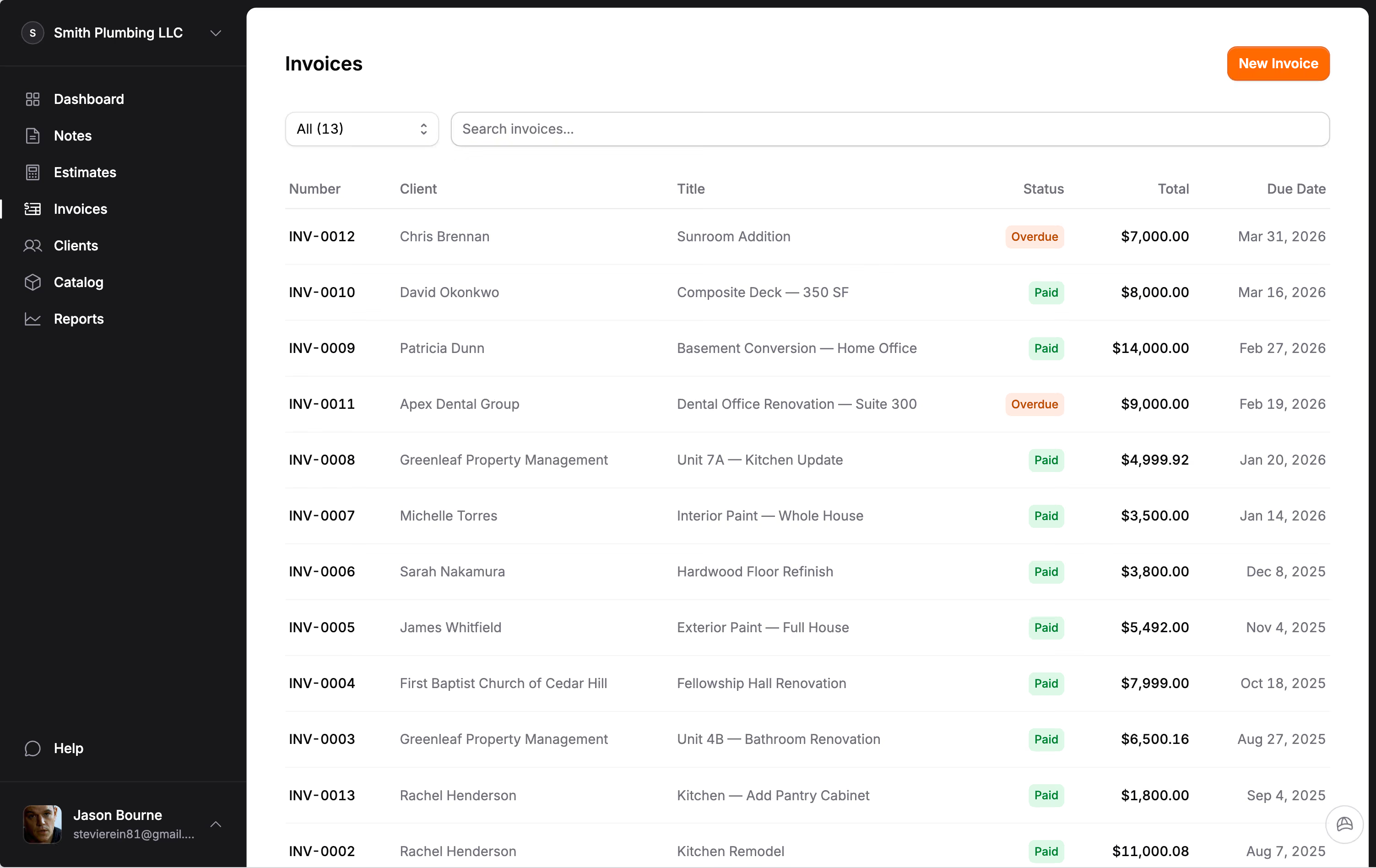
Invoices are the core of your books. Every invoice you send should show up in QuickBooks as an accounts receivable entry. When that invoice gets paid, the payment should match against it automatically. This is how you know who owes you money, how long they have owed it, and what your actual revenue looks like at any point in the year.
Payments need to land in QuickBooks tied to the correct invoice. If you are using online payments through Stripe, the payment data can flow directly. No more manually marking invoices as paid days after the check clears. When payments sync automatically, your accounts receivable stays accurate and you can pull a real-time snapshot of your cash position.
Client records should sync so that every customer in your invoicing tool matches a customer in QuickBooks. This keeps your reporting clean. When you pull a profit-and-loss report by customer in QuickBooks, you want it to reflect the same names and totals that are in your invoicing system.
What to skip
Here is where most contractors create problems for themselves: syncing too much. Estimates are not invoices. If you push estimates into QuickBooks, they can show up as open receivables, inflating what clients "owe" you. Your books look wrong, your accountant gets confused, and your tax prep takes longer because someone has to clean it all up.
Do not sync drafts, pending estimates, or proposals. Those belong in your estimating tool, not your accounting system. QuickBooks should only see money that is owed (invoices) and money that has been received (payments). Everything upstream of the invoice is a sales pipeline activity, not an accounting event.
The other common mistake is over-categorizing. Contractors sometimes create 40 or 50 expense categories trying to track every possible cost. Your accountant does not need separate categories for "saw blades" and "drill bits." They need to know your total cost of goods sold, your total operating expenses, and how those break down into a handful of meaningful buckets. Simpler is better.
A chart of accounts that actually works for contractors
Your chart of accounts is the backbone of your QuickBooks setup. Most contractors either use the default template (which is built for retail businesses) or create a tangled mess of custom accounts. Neither works well. Here is a structure that does:
Income accounts: Contract Revenue (your main income from jobs), Change Order Revenue (if you want to track add-on work separately), and Service/Repair Revenue (for smaller call-back or maintenance work). Three accounts cover the income side for most contractors.
Cost of Goods Sold (COGS): Materials, Subcontractor Labor, Equipment Rental, and Permits. These are the direct costs of completing a job. Keeping them in COGS gives you a gross profit number that tells you how much you actually made on the work itself, before overhead.
Operating Expenses: Vehicle/Fuel, Insurance, Tools and Equipment, Office/Admin, Marketing, and Professional Services (your accountant, attorney, bonding). These are costs you pay whether or not you have an active job. Separating them from COGS lets you see your true overhead, which is the number that determines whether your markup is actually covering your costs.
Tracking job costs per project
Knowing your total revenue is useful. Knowing your revenue and cost per job is powerful. QuickBooks lets you assign income and expenses to specific customers or projects, and if you are not doing this, you are flying blind.
When you tag each invoice and each expense to a project, you can pull a job profitability report at any time. Did the Henderson kitchen remodel actually make money, or did material overruns eat the margin? You will not know unless costs are tracked at the project level.
This is where clean data from your invoicing tool matters. If your invoices sync into QuickBooks with the correct customer name and line items, half the work is done. You just need to categorize your expenses against the same customer. At the end of the job, QuickBooks shows you exactly what came in and what went out.
The tax time payoff
The real value of keeping QuickBooks clean all year is what happens in January. Instead of spending two weeks pulling together receipts, bank statements, and handwritten notes, you hand your accountant a profit-and-loss statement, a balance sheet, and a clean set of categorized transactions. They do your taxes. You get back to work.
If you are a sole proprietor or single-member LLC, you are filing a Schedule SE for self-employment tax on top of your income tax. That means the IRS wants to see your net profit from the business, and they want it to be accurate. Clean books are not optional when you are responsible for both halves of Social Security and Medicare. The penalties for underreporting are real, and the deductions you miss from sloppy bookkeeping cost you money every single year.
Contractors who categorize expenses all year long instead of scrambling in January consistently tell us the same thing: they find deductions they would have missed, their accountant charges less because the books are clean, and they feel in control of their money for the first time.
Common QuickBooks mistakes contractors make
Mixing personal and business transactions. If you are running materials purchases on your personal credit card or depositing checks into your personal account, your books will never be accurate. Open a separate business checking account and a business credit card. Run every business expense through them. This is the single biggest thing you can do to simplify your accounting.
Not reconciling monthly. Reconciliation means matching your QuickBooks records against your actual bank statement. It takes 15 minutes a month and catches errors before they become problems. Contractors who skip reconciliation for six months end up spending hours untangling discrepancies, or worse, they file taxes based on numbers that are wrong.
Using the wrong entity type in QuickBooks. If your business is an LLC taxed as an S-corp, but QuickBooks is set up as a sole proprietorship, your reports and tax categories will not match what your accountant needs. Get this right during setup. Five minutes of configuration saves hours of correction later.
Entering the same transaction twice. This happens when you manually enter a payment and then connect your bank feed, which imports the same transaction automatically. QuickBooks tries to catch duplicates, but it does not always succeed. Review your bank feed imports instead of entering everything by hand.
QuickBooks is the ledger. Your invoicing tool is the engine.
Think of it this way: QuickBooks keeps score. It tells you how the business is doing financially. But it is not where the work gets done. You do not write detailed estimates in QuickBooks. You do not send professional invoices with line items, change orders, and payment links from QuickBooks. You do not collect online payments through QuickBooks.
The best setup is an invoicing tool built for how contractors actually work, feeding clean data into QuickBooks for accounting and tax purposes. Jobkore handles the estimating, invoicing, and payment collection side. QuickBooks handles the bookkeeping. When the two are connected through a direct sync, you do not have to enter anything twice. Invoices, payments, and client data flow automatically. Your books stay clean without extra work.
That division of labor is what lets you focus on running jobs instead of running spreadsheets. Set up QuickBooks correctly, connect it to the right tools, and it quietly does its job in the background. The payoff shows up every time you check your numbers, talk to your accountant, or make a decision about where to take your business next.
Frequently Asked Questions
What should contractors sync from their invoicing tool to QuickBooks?
Sync invoices, payments, and client data. These are the records your accountant needs for tax prep and the ones that matter for cash flow reporting. Do not sync estimates as invoices; that creates phantom revenue. Keep QuickBooks as your accounting ledger and your invoicing tool as your client-facing system.
What QuickBooks plan do contractors need?
Most solo contractors and small crews do fine with QuickBooks Simple Start or Essentials, which run $25 to $50 per month. You only need Plus or Advanced if you track inventory, run payroll through QuickBooks, or need project-based profitability reports. Start simple and upgrade only when you outgrow it.
How should contractors set up their chart of accounts in QuickBooks?
Keep it simple. Income accounts for services and materials. Cost of Goods Sold for direct job costs like materials, subcontractor payments, and equipment rental. Expense accounts for overhead: insurance, truck, tools, office, phone, software. Do not create a new account for every vendor or job. Group by category and use projects or classes to track per-job costs.
What are the most common QuickBooks mistakes contractors make?
Mixing personal and business expenses in the same account, not reconciling bank feeds monthly, categorizing owner draws as expenses, creating too many accounts that nobody uses, and forgetting to record cash payments. The biggest one: not doing it regularly. QuickBooks works when you keep it current. It becomes a mess when you catch up once a year before taxes.