FAQ
Frequently asked questions
Everything contractors ask about Jobkore — from pricing to payments to Hank AI™.
Getting Started
Go to the registration page and sign up with your email and a password (8+ characters), or use the Start with Google button. After signing up, enter your business name and select your trade to access the app.
Yes. Every new account gets a 14-day free trial. No credit card required to start. Build and send estimates and invoices right away; online card and bank payments unlock when you subscribe.
First, add a client from the Clients page. Then go to Estimates, click New, select that client, add your line items, and save. You can then email or share the estimate with your client.
Pricing & Billing
Jobkore is $29/month, or $290/year — 17% off, two months free. Every feature in the app is included and nothing is gated. Jobkore plus a website for your business is $49/month, or $490/year.
You'll be prompted to subscribe when you try to use core features, and your data is waiting where you left it. If you never subscribe, we'll email you about a week after expiry to say the account is scheduled for deletion, and nothing is removed until at least seven days after that email. Anyone who has ever subscribed keeps their data permanently.
Go to Billing and click "Manage Subscription." This opens the Stripe customer portal where you can cancel, change plans, or update your payment method.
Go to Billing, then click "Manage Subscription." The Stripe portal shows all past invoices and receipts.
Yes. Every Monday you receive a weekly recap email summarizing your activity — estimates sent, invoices paid, revenue earned, and more. You can enable or disable it in Settings under Notifications.
Estimates
Go to Estimates and click New. A draft is created immediately — no client or line items required to start. Add a client, title, and line items as you go. Changes auto-save. When done, click "Done" to go back to your estimates list, then send when ready.
Open the estimate and click "Send." You can customize the subject and message, choose recipients, and optionally send yourself a copy. The estimate PDF is attached automatically.
In the estimate or invoice form, click "Add Section" below the line items list. Sections let you group related items (e.g., "Demolition," "Framing," "Electrical"). Each section shows its own subtotal. You can drag items between sections and reorder them.
Overall markup applies a percentage across all line items at once. Click "Add Overall Markup" in the totals area. The markup is rolled into each line item's rate on client-facing views — your client sees the final price, not the markup.
Invoices & Payments
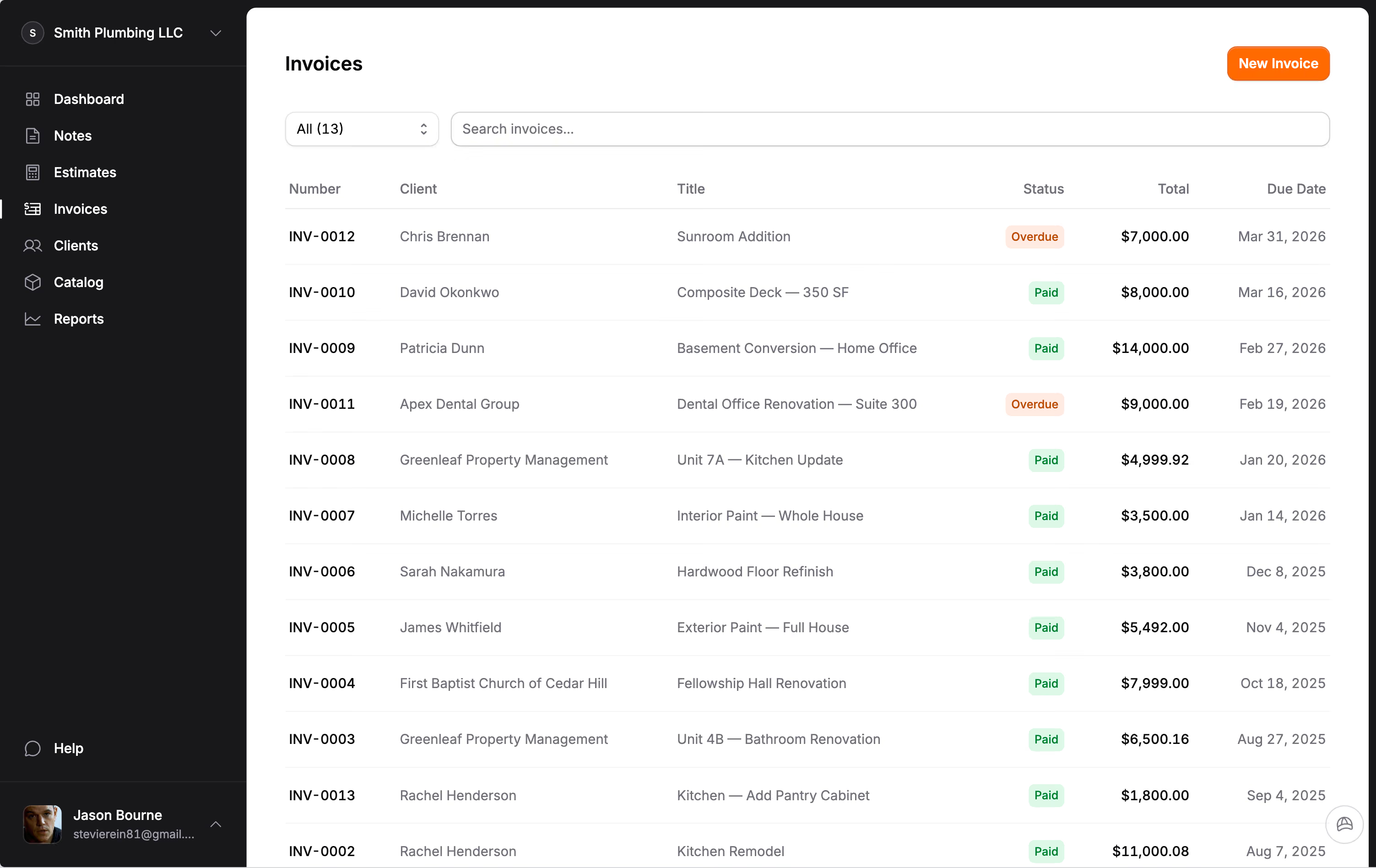
Go to Invoices and click New. A draft is created immediately. Add a client, line items, and due date as you go. Changes auto-save. You can also create one directly from an accepted estimate.
Open a sent invoice and click "Record Payment." Enter the amount, payment method (Check, Cash, Zelle, Venmo or Bank Transfer), reference number, and date. The invoice auto-updates to Paid when the total is covered.
Yes. When sending an email, you can add multiple recipient email addresses. All contacts for the client are shown as suggestions.
Card payments: 2.9% + $0.30. ACH bank transfer: ~0.8% (capped at $5). You can choose to absorb the fee or pass the card fee to your client. When passed, the fee is shown to the client before they pay. Jobkore adds nothing on top.
Yes. Put a payment schedule on the invoice — a deposit, draws, a balance — each with its own due date. Your client sees the rows on the share page and pays the next one, or the whole balance, whichever you both prefer. Payments fill the rows in order.
Hank AI™
Hank is your AI assistant built into Jobkore. He organizes field notes into structured estimates and invoices, improves your writing, and provides business analysis on the reports page. Try the Hank demo →
Select your field notes, tap Create Document, and pick an estimate or an invoice. The new document opens with Hank beside it. He reads the notes, lays out a plan with any questions, and builds the sections and line items once you say go, pricing what he reasonably can. Then change anything by asking. Each change can be undone, and nothing is removed until you tap Apply.
On the Reports page, Hank analyzes your numbers and gives you a plain-language summary of your revenue, outstanding invoices, and trends. It highlights what needs attention so you can act on it.
QuickBooks Sync
Go to Settings, open the Integrations tab, and click "Connect with QuickBooks." Sign in to your QuickBooks Online account and authorize Jobkore. Once connected, your data syncs automatically.
Estimates, invoices, clients, catalog items, and payments sync from Jobkore to QuickBooks — including edits. Sync is one-way: Jobkore is always the source of truth. Changes made directly in QuickBooks are not synced back.
Change Orders
When scope changes after you have invoiced, open that invoice and choose Add Change Order: a title, the extra or removed work, and a note saying what changed. Your client signs it on the same link they already have, and the invoice shows a revised total. Work they have not signed for does not count toward what they owe.
Yes. Enter the line at a negative amount and the change order nets out of the total. It works even on an invoice already paid in full — the invoice then reads as overpaid, and you settle it the way the money came in: refund the client in Stripe for a card or bank payment, or edit the payment you recorded if they paid you directly.
Field Notes
Field notes let you capture text and voice memos from job sites, phone calls, or walkthroughs. You can then select notes and use Hank AI™ to turn them into organized estimates or invoices.
Yes. Go to Field Notes and tap the microphone icon. Speak your notes — recording supports up to 15 minutes. When you stop, the audio is automatically transcribed to text. You can edit the transcript after.
Mobile
Yes. On Android, get Jobkore on Google Play. The iOS app is coming soon; until then, it installs straight onto your iPhone home screen from Safari: open app.getjobkore.com/install on your phone and it walks you through it.
Open app.getjobkore.com/install on your phone — the page detects your device and gives you the exact steps. On Android, install it from Google Play. On iPhone it's Share, then "Add to Home Screen."
Sharing & PDF
Open the document and click "Share." A unique link is generated that you can copy and send via text, email, or any messaging app. No account needed — your client views it in their browser.
Share links are valid for 90 days after they're sent, and renew automatically for another 90 days each time your client opens one — so an active back-and-forth never goes stale. A link stops renewing once the document is accepted, declined, paid, or voided.
Open the estimate or invoice and click "Download PDF." The PDF includes your logo, company info, all line items, photos, notes, terms, and signatures.
Your Website
On the Jobkore + Website plan ($49/month or $490/year), yes — a hosted marketing site for your business. The $29/month plan does not include one, and you can switch plans from Billing.
Open Website and answer six questions: who you work for, what you do, the towns you cover, and what makes you different. Jobkore writes the first draft from your answers and from what it already knows about your business, then you edit anything you want. Hank can rewrite any of it for you.
Yes. Register one from inside Jobkore — a domain is included with the plan at no extra cost, and it is registered in your name, not ours — or connect one you already own by adding a DNS record at your registrar. Every site also gets an address on jobkoresites.com.
Your site has a contact form, and everything sent through it lands in Website → Inbox. You get an email too. From there you can add the person as a client in one tap, which also saves what they wrote as a field note so you can turn it straight into an estimate.
Yes. When a client pays an invoice in full, the receipt they already get can ask them to review your business. If your site is published they land on a page that collects a testimonial first, and you approve it before anything appears. Jobkore does not display or sync your Google reviews — it links out to your profile instead.